
There are some amazing changes in Tc2512!
- No more third-party web tier (JBoss, Tomcat, IIS, etc.).
- No more WAR file distribution (SSO Login Service or SSO Identity Service).
- VisServerless is introduced and deprecates Visualization Pool Assigner (VPA), Visualization Server Manager (VSM), and the Visualization Data Server (VDS).
- The Teamcenter Client Communication System (TCCS) now includes the Security Agent.
- And so much more!
Software Certifications (Tc2512)
| Component | Version |
| Operating System | Windows 11 Ent/Pro Windows Server 2022 DC/Std Ed |
| Database | MS SQL Server 2022 Ent/Std Ed Oracle 19c (12.2.0.3) non-CDB and CDB |
| Java | Eclipse Temurin JDK 21.0.3 |
| Siemens License Server (SALT) | Flex 4.4.1 |
| Browser (Win11 Desktop) | Chrome v138, Microsoft Edge Chromium v140, Firefox v140, Safari v26 |
| C++ (includes C#) | MS Visual Studio 2022 Ent/Pro Ed |
Home Tiles
ShowHome is deprecated in favor of Launcher Tools.
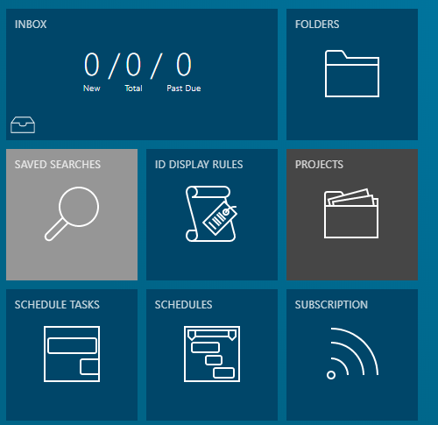
Starting in Tc2512, Tiles in the Active Workspace are deprecated -- as is the AW Home page as you know it. Instead, the Launcher and Actions have entered the chat.
Home
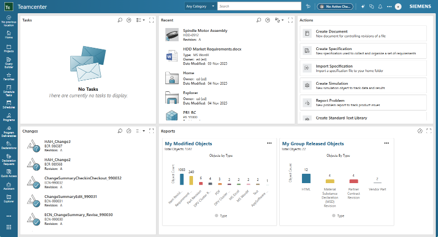
There is a new Home page design with a fresh, clean dashboard-like interface.
You will need to investigate modifying the “Actions” section (Create Design; Create Document) to add custom types.
Use Launcher to personalize the Navigation Bar and add Tools (by Pinning)
Display Environment
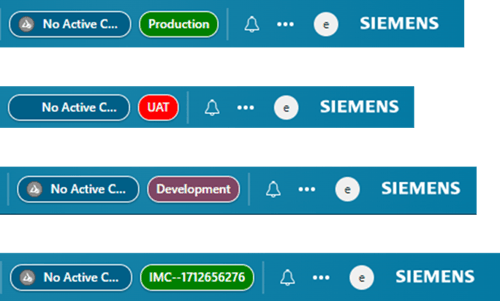
Updates to the AWC_Display_Environment_Info
- The value consists of three parts separated by dollar signs $.
label$background_color$text_color - You may also use the $siteName variable as your text, which substitutes Teamcenter's Site Name.
- Background color and text color use hexadecimal RGB values like #4C7F79, or CSS standard names like red, green, blue, and so on.
Primary Work Modes
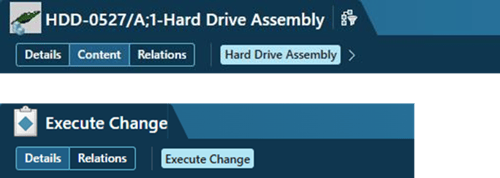
Details, Content, Relations
- New page-level Primary Work Modes are meant for fundamental switches of your mode of work and focus when working with an opened object.
- A Primary Work Mode corresponds to one of the primary or secondary work areas supported by the object page.
- Unstructured objects, such as a Task or a Change, omit the Content mode, which focuses on object structure.
Interface Modifications
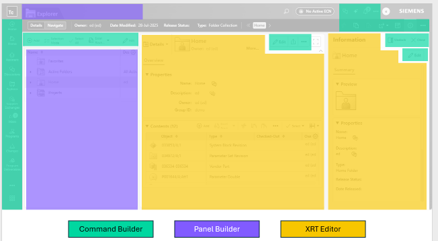
Use the following tools to modify the user interface.
| Command Builder | Create new commands and their actions, or modify existing commands including placement and visibility. |
| Panel Builder | Modify the layout of declarative panels. |
| XRT Editor | Register, create, or modify style sheets. |
Personalized Navigation

There is a new launcher panel to help easily launch your tools. You can find it in the navigation bar and pin the tools you wish to launch when you click the launcher.
Launcher Tools
You’ll want to learn how the ToolDef and ToolCollection XML elements combine to create a tool file.
|
aws2_install_tools -u=infodba -p=infodba -g=dba -mode=add -file="A4_Tools.xml" -log="A4_Tools-install.log"
|
Teamcenter web tier
Beginning with this release, the web tier is now deployed as a service on Windows systems or a daemon on Linux systems. Replacing web applications with system services eliminates the dependence on third-party web application servers, such as Java EE application servers or Microsoft IIS.
Security Services Login Service and the Identity Service, previously deployed as WAR files, are now deployed as services on Windows systems. This eliminates the need to deploy or update WAR files.
Indexer and Search Administration Dashboard
As an administrator, you can review the status of indexed objects and file contents in the Summary on the Indexer and Search Administration Dashboard.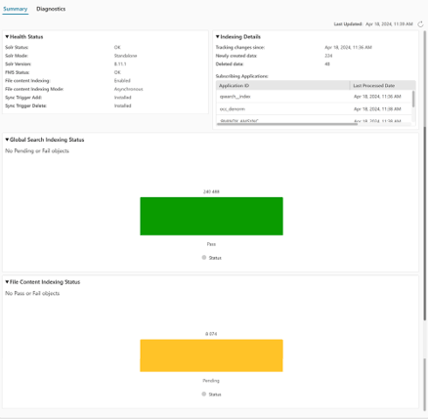
Now, you can also submit objects or file contents that are in the failed status for reindexing from the dashboard.
You can select all failed objects or select particular objects to submit. The submitted objects and file contents are reindexed during the next synchronous indexing cycle.
Deployment Center
- Move the Teamcenter Vault (TC_ROOT\tc_vault)
- vault_config.hcl and vault_connector.properties files
- Create or restore a DC Snapshot...
dc_quick_deploy
-create_snapshot
-dcurl=http://dc_host:8080/deploymentcenter
-comment="Pending install Teamcenter 2512"
-environment=env_tc2512
-dcusername=dcadmin
-dcpasswordfile="E:\admin\dcadmin.pwf" - Move or Remove (Uninstall) DC Components
| dc-install-path\repository\software\teamcenter-kit-path\dc_contributions\deployablecomponents\uninstallrule.xml |
As an administrator, you can now move installed components in a deployed Teamcenter environment from one machine to another within the environment.
You can also move installed components through the Quick Deploy process using new tags. These processes ensure reliable component transfer while maintaining system integrity and installation states. You can also uninstall even more components from a deployed environment.
|
Active Workspace Client Builder |
Indexing Engine |
Sample Files |
|
Business Logic Server |
Key Manager Satellite |
Schedule Manager |
|
Business Modeler IDE two-tier |
Key Manager Secondary Server |
Server Manager |
|
Business Modeler IDE four-tier |
Key Manager Server |
Teamcenter AI Chat |
|
Business Modeler IDE Standalone |
Linked Data Web Services (Java EE) |
Teamcenter Integration Framework (TcIF) |
|
Capital Asset Lifecycle Management Integration |
Log Aggregator |
Teamcenter Rich client (Shared Disk Deployment) |
|
Database Daemon |
Multisite Collaboration HTTP |
Teamcenter Teams Broker Microservice |
|
Document Management Teamcenter Client PDF Sign |
Multisite Collaboration IDSM Service |
Teamcenter Tool Launch Client |
|
Eventing Service |
Multisite Collaboration ODS Service |
Teamcenter Web Tier |
|
External Application Data Extractors |
RM Word Extension (Java EE) |
Teamcenter Vault |
|
HTTPS Config |
Real-time co-authoring |
Zookeeper |
|
Indexer |
Rich client two-tier |
Instance Data Sync
The Instance Data Sync utility is a useful tool that can minimize downtime during Teamcenter release updates. Find it at Support Center in Teamcenter > Downloads > Additional Downloads > Tools for Teamcenter.
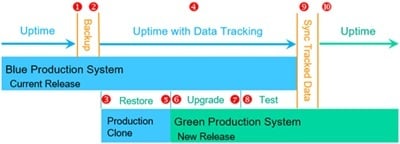
Actions can be StartSource, StartDestination, Sync, and FinishSource.
|
InstanceDataSync.exe |
TCCS Combined w/TcSS SA
Teamcenter Client Communication Service (TCCS) and the Security Services Session Agent were previously installed using separate desktop installation wizards. Starting with this release, the TCCS and Security Services installers are combined into a single installation wizard, simplifying the installation for these desktop components. The Security Services Session Agent standalone installation wizard is no longer used.
Teamcenter Vault
You can restore a vault snapshot at * https://www.vaultproject.io/ or * https://developer.hashicorp.com/vault
Click View next to secrets/ in the Secrets engine section of the dashboard to view the Teamcenter secrets.
* Requires Siemens Login
Visualization Extension
Install the Visualization Extension application to enable serverless client-side rendering capability in the Teamcenter environment. Serverless visualization replaces the functionality of the Visualization Server. Deployment Center installs serverless visualization capability.
In the Microservice Node component, the 3D Visualization Services microservice is also added, which supports precise measurement and 2D image conversion capabilities.
The Visualization server components (Visualization Server Manager, Visualization Server Pool Assigner, and Visualization Data Server) are deprecated and will be removed in a future version of Teamcenter.
Process History
The new Process History view provides comprehensive information about your workflows and detailed historical information for improved tracking and auditing.
While the Workflow tab shows the current state, the Process History view lets you explore past activities, displaying changes and iterations chronologically.
This is especially useful for complex workflows that include Review tasks that go through multiple rounds due to rejections and resubmissions.
You can access the full history of each review cycle, including decision-makers and timestamp information. This feature ensures a thorough audit trail of all approvals, rejections, and sign-offs as the workflow progresses through its stages.
Performance Enhancements
This release introduces significant performance improvements across several key areas.
The enhancements focus on optimizing the submission and completion processes, particularly for workflows involving a large number of targets.
Bulk operations for property population, target object validation, and attachment loading have been implemented, resulting in measurable performance gains.
The people picker component in the Submit to workflow and task assignment panels has also been refined, improving filter processing and significantly reducing load times.
Summary
Tc2512 brings some big changes, including a cleaner Home page design, updates to the display environment, primary work modes, interface modifications, personalized navigation, a new process history view, and performance improvements.
These updates should bring improvements to your workflows and processes, but you will need to architect a new server landscape. That starts with re-evaluating your current software compatibility using the latest platform matrix Tc2512PlatformMatrix-2025-October-24.xlsx (requires Siemens login).
If you need help updating your Teamcenter instance or integrating with third- party software, feel free to reach out.
