

Are you frustrated by slow toolpath visualization, odd shading glitches, or choppy simulation playback when working with CAD/CAM software? You might suspect NX, your graphics driver, a recent Windows update, or even your company's IT setup. But the real culprit could be something far less obvious: a crucial hardware architecture decision made before your laptop ever left the factory — one most engineers never even hear about.
The problem usually isn't NX. It isn't the driver version, the Windows update, or the IT configuration. It's baked into the hardware itself. Here's what's usually happening — and why it's an architectural problem, not a performance problem.
 Running NX CAM on a laptop
The Hidden Layer Most Engineers Don't Know About
Modern workstation laptops typically ship with what's called hybrid graphics — two GPUs running in parallel. You have a dedicated NVIDIA workstation GPU (the one on the spec sheet), and an Intel integrated GPU built into the processor.
The idea sounds reasonable: use the efficient Intel chip for light tasks, switch to the powerful NVIDIA GPU when it counts.
The problem? On most laptops — including ThinkPad P-series systems — the internal display is permanently routed through the Intel GPU. Always. Even when you've manually set the system to use NVIDIA. Even when NX is running. Even when the NVIDIA GPU is doing all the rendering work, that rendered output still has to pass through the Intel chip before it reaches your screen.
Lenovo's own P16 Gen 2 spec documentation confirms this directly: the Intel UHD Graphics is listed as "Utilized via Hybrid Mode in BIOS" – meaning in hybrid mode, the internal display is always governed by the iGPU.
For most applications, this barely matters. For NX CAM, it can be devastating.
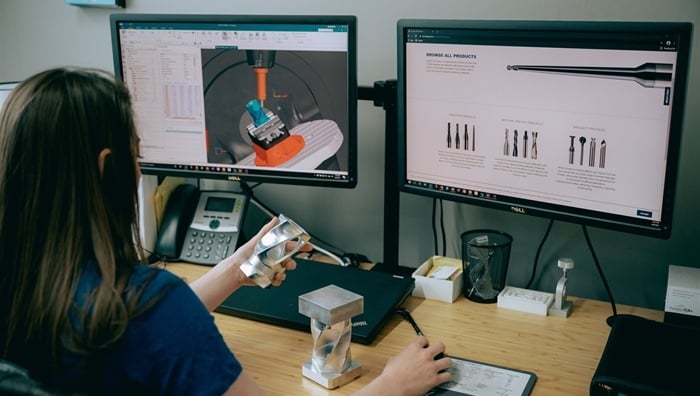 Machinist sets up tool paths in NX CAM using a desktop setup
Why NX CAM Is Particularly Vulnerable
Siemens NX isn't a typical application. It's built on a hardware-accelerated OpenGL pipeline, and Siemens certifies specific GPU configurations — not just GPU models — for reliable operation. That distinction matters.
As Siemens' own system requirements documentation puts it, graphics adapters are carefully selected for OpenGL support, and consumer or gaming cards "are not well supported under OpenGL" — because "a majority of platform/hardware problems are graphics related."
NX relies on the GPU not only for decorative graphics, but for core computational operations that run constantly during CAM work. Real-time toolpath visualization — material removal simulation, multi-axis motion playback, high-density surface tessellation — runs in parallel with dynamic shading and interference checking, translucency, edge highlighting, anti-aliasing. Large assembly handling adds geometry buffer management, view-dependent level of detail, and shader-based visualization of in-cut regions. These are all parallel floating-point workloads. They run constantly during CAM operations. And they require a stable, direct path between the GPU and the display.
When that path runs through a second GPU — one Intel never designed for this purpose — you get frame pacing stalls, rendering latency, and a bandwidth bottleneck that compounds under load. And unlike a desktop workstation, there's nowhere for that heat to go. Laptops operate in a thermally constrained envelope by design: shared cooling infrastructure, limited airflow, and chassis temperatures that rise quickly under sustained GPU / CPU loads. As thermals climb, clocks throttle — and a GPU that was already fighting an inefficient pipeline starts delivering even less.
Starting with NX 2306, Siemens made the GPU requirement explicit. The NX 2312 Release Notes document confirms that the software now actively enforces GPU requirements at launch. If it doesn't find a supported, certified GPU — including cases where hybrid graphics has silently handed rendering duties to the Intel chip — users see this:
***************************************************************************
Graphics Configuration Error
This is an unaccelerated graphics configuration. NX requires
accelerated graphics configurations. Perhaps the graphics device
is unsupported or perhaps an unsuitable device driver is installed.
Attempt to open any part may result in program termination.
***************************************************************************
NX Isn't Alone — But It Is the Hardest Case
This isn't a problem unique to NX, or to any one laptop manufacturer. SolidWorks faces the same challenge. It also relies on OpenGL and requires a certified NVIDIA workstation GPU, and users on hybrid-graphics laptops regularly encounter the same symptom — Windows quietly routing the application to the Intel iGPU instead of the discrete card, causing lag, display glitches, and rendering corruption.
The difference is in how each application responds. SolidWorks includes a "Software OpenGL" fallback mode that lets it keep running by emulating graphics through the CPU when no certified card is detected. It's slower, but the session survives. Siemens NX 2306+ has no equivalent fallback — it detects the misconfiguration and may terminate entirely. Same root cause, meaningfully different consequences.
The takeaway isn't that any one vendor has made a bad product. It's that professional CAD/CAM software is built around assumptions about hardware pipelines that hybrid-graphics laptops quietly violate — and the more demanding the workload, the less tolerance there is for that gap.
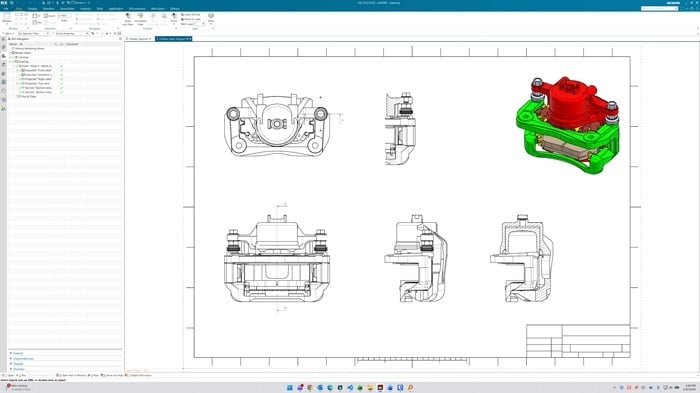 Screen image of drafting in NX CAD
A Reproducible Diagnostic Test
Here's something that consistently reveals the problem: plug in an external HDMI monitor.
The P16 Gen 2 spec sheet confirms that HDMI 2.1 routes through the NVIDIA discrete GPU — while the internal panel runs through Intel. When you run NX on an external display, the rendering pipeline is clean. When you run it on the internal display, it isn't.
This is not theoretical. Real NX users on ThinkPad hybrid systems have reported exactly this failure pattern: shading corruption, jagged surfaces, and incorrect tessellation — with Windows overriding NVIDIA Control Panel settings and forcing NX onto the Intel GPU despite manual configuration.
If NX runs noticeably better on the external screen, you've just proven that hybrid graphics are your bottleneck — not NX, not your CPU, not your settings. An external monitor reveals the problem; it doesn't fix it.
I've seen users go through months of driver updates and NX configuration changes before discovering this.
What "Acceptable" Actually Requires
This isn't an argument that laptops can never work for NX CAM. Some can — but only when explicitly configured for it, and most ship in a default state that doesn't meet Siemens' requirements. The gap between "workstation laptop" on the spec sheet and "certified NX CAM configuration" is wider than most buyers realize.
There is a fix — but it's not automatic. ThinkPad P-series BIOS does offer a discrete-only graphics mode that bypasses the Intel iGPU entirely. Enabling it before NX ever launches resolves the rendering pipeline issue. It requires a deliberate BIOS configuration change that most systems never receive out of the box — but it works, and it's the right first step for any ThinkPad P-series deployment. There's no software-level hack or driver setting that reliably substitutes for it.
The non-negotiables for a laptop that will genuinely support NX CAM:
- True dGPU-only mode, either via a BIOS setting or a hardware MUX switch that routes the internal panel directly to the NVIDIA GPU
- A certified NVIDIA RTX workstation GPU (not consumer-grade, not "equivalent performance")
Sustained thermal and power capacity — 115W+ GPU TDP, 230W+ adapter, proper cooling
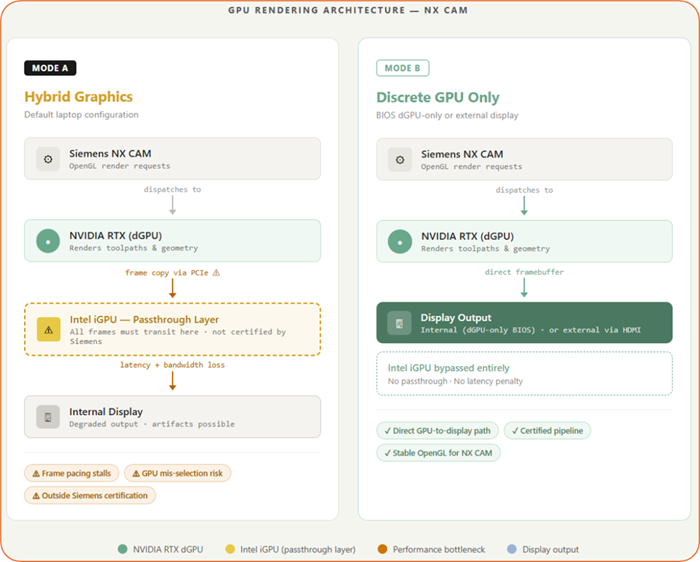 GPU Rendering Architecture in Hybrid Graphics Mode and Discrete GPU Only mode compared
Laptop or Desktop? The Final Answer
This is the question that matters most, and it deserves a straight answer.
Choose a desktop workstation if NX CAM is your engineer's primary daily tool. Programming, simulation, verification, multi-axis toolpaths — if that's the job, a certified desktop workstation (Lenovo ThinkStation, Dell Precision Tower, HP Z-series) is the right answer. No hybrid graphics layer. No thermal throttling under sustained load. Full ISV certification. Desktop workstation GPUs sustain 200–350W; mobile counterparts typically manage 60–140W before throttling. The delta is not marginal.
Choose a laptop if NX CAM is part of what the engineer does — not all of it — and mobility is a genuine operational requirement. But only if you're prepared to: verify the model is on Siemens' certified list, configure dGPU-only mode in the BIOS before it goes anywhere near a CAM programmer, and accept that thermal limits and power constraints mean it will never quite match a desktop under sustained load.
The uncomfortable reality is that most organizations buying workstation laptops for NX CAM engineers are making a procurement decision based on flexibility and cost — not based on what the software requires. The laptop ships in hybrid mode, nobody changes the BIOS, and six months later IT is chasing phantom performance problems that were baked in from day one.
If an engineer genuinely needs both mobility and serious NX CAM capability, the right answer is probably both — a desktop as the primary machine and a correctly configured laptop for shop floor review, supplier visits, and travel. That's not a hedge; it's how most mature CAM environments handle it.
Desktop first. Laptop as a deliberate secondary. Never a laptop as a default replacement.
The industry has spent years assuming "workstation laptop" means workstation-grade reliability. For most software, that assumption holds. For Siemens NX CAM, the architecture details matter — and they're worth understanding before your team loses weeks chasing a problem that was hiding in the BIOS all along.
